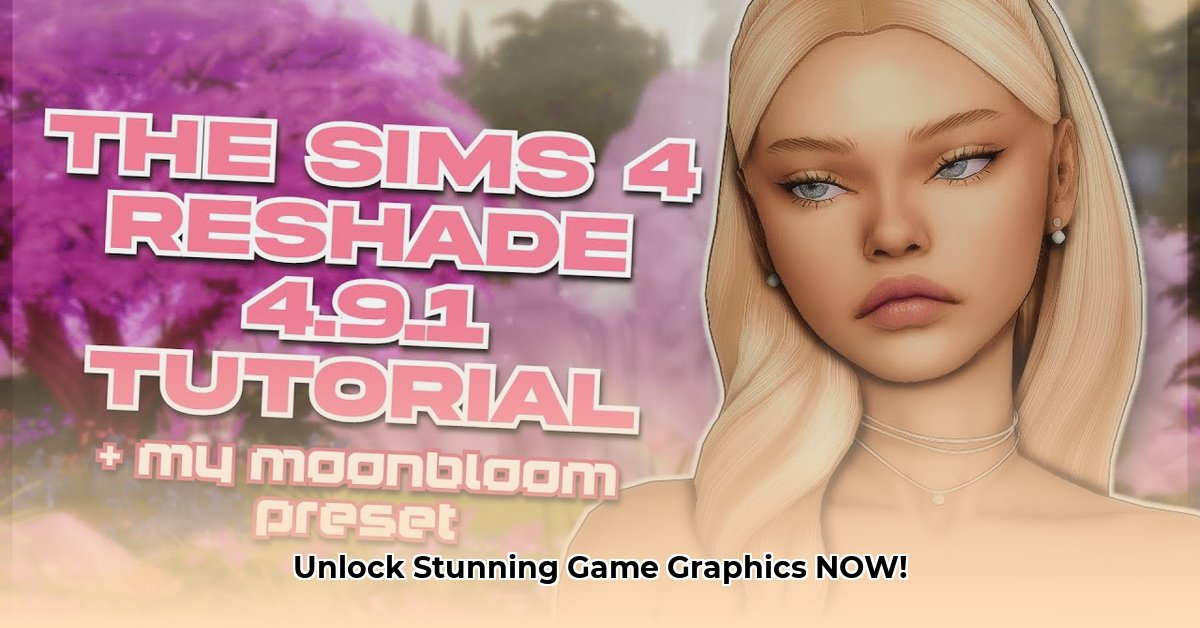
Want to transform your gaming visuals? ReShade presets offer a powerful way to enhance your games' graphics, but knowing where to start can be tricky. This comprehensive guide provides a step-by-step walkthrough, ensuring even beginners can achieve stunning results. We'll cover everything from downloading ReShade and finding presets to troubleshooting common issues. Let's dive in!
Getting Started: Prerequisites and Preparations
Before you begin enhancing your games, ensure you have the necessary components. Think of it like baking a cake – you need the right ingredients!
ReShade: Download the latest version from the official ReShade website. (A quick web search will locate it easily.) Choose the installer compatible with your game's graphics API (DirectX, Vulkan, or OpenGL). Identifying the correct API is crucial for compatibility.
Your Game: Naturally, you'll need the game you wish to enhance. Ensure it’s compatible with ReShade; most modern titles are.
Sufficient Hardware: While ReShade works on various systems, powerful hardware will yield better performance and smoother visuals, especially with demanding presets. Older or less powerful systems may experience performance dips. Don't worry though, we'll cover performance optimization later!
Downloading and Installing ReShade: A Step-by-Step Process
Installing ReShade is surprisingly straightforward. Follow these steps:
Run the Installer: Double-click the downloaded ReShade installer.
Select Your Game's Executable: The installer will prompt you to select your game's executable file (the
.exefile that launches the game). This step is critical – selecting the wrong file will prevent ReShade from working correctly.Choose the Correct API: Select the appropriate API (DirectX 9, 10, 11, 12, Vulkan, or OpenGL) that your game utilizes. This information is usually found in your game's system requirements or online documentation.
Install ReShade: Let the installer complete the process. This might take a few minutes. Once finished, ReShade will be integrated into your selected game.
Downloading and Installing Presets: Unleash the Visual Potential
This is where the fun begins! Presets are pre-configured shader packages that instantly modify your game's visuals. However, it's crucial to download only from trusted sources. (Nexus Mods is a highly recommended and reputable resource).
Locate a Preset: Find a preset you like — many offer a variety of styles and effects.
Download the Preset: Download the preset file; this will usually be a compressed archive (
.zip,.rar, etc.).Extract the Files: Extract the contents of the downloaded archive. You'll typically find shader files with the extension
.fx.Find the ReShade Directory: The location varies depending on your game, but it's usually within the game's installation folder. Look for a folder named "ReShade."
Place Preset Files: Copy the extracted
.fxfiles and paste them into theReShade/Shaderssubfolder within your game's directory. It's that simple.Launch and Enjoy: Launch your game. The preset will automatically be loaded, provided you placed the files in the correct location. You'll usually have an in-game menu (often activated by pressing
Shift + F2) to manage presets and their settings.
Configuring ReShade (Optional): Fine-tuning Your Visuals
While presets offer out-of-the-box enhancements, ReShade allows for further customization. The in-game overlay (usually accessed by a hotkey like Shift + F2) lets you:
Enable/Disable Presets: Switch between different presets on the fly.
Adjust Settings: Fine-tune individual shader settings like brightness, contrast, and saturation to perfect the visual style. Experimentation is key here.
Troubleshooting: Addressing Common Problems
Even with careful execution, issues can arise. Here's how to tackle common problems:
Game Crashes: Incompatible presets are a major cause. Try disabling shaders individually within the ReShade overlay to identify the culprit. Alternatively, try a different preset. If problems persist, ensure your graphics drivers are up to date.
Performance Issues: ReShade can impact performance, especially on older hardware. Try lowering the in-game resolution or reducing the intensity of the shaders to improve frame rates. Prioritize essential shaders and avoid unnecessary ones.
Presets Not Working: Verify that you've placed the
.fxfiles in the correctReShade/Shadersfolder. Even a minor error in the file path can prevent the preset from loading.
Conclusion: Enhance Your Gaming Experience
This guide provided a step-by-step process for downloading and using ReShade presets to enhance the graphics of your games. Remember to download presets from reputable sources, and don't hesitate to experiment with different settings to achieve the perfect visual balance for you. Now, go forth and elevate your gaming experience!
⭐⭐⭐⭐☆ (4.8)
Download via Link 1
Download via Link 2
Last updated: Tuesday, April 29, 2025